Offering Online Training using Moodle + REPORTER
In the REPORTER registration system, Course Admins can create courses with individual instances that users are able to register for. Each instance represents and individual session or offering of the course. Within the instance setup, course admins can use additional settings within the setup to connect the instance to a specific Moodle space.
Before setting up your REPORTER instance to connect to Moodle, it is best practice to complete the setup of online content within Moodle – which this is done through the DELTA Wolfware services.
Is there a cost to use Moodle?
If there is a cost for participants to take the course, or the course is being externally funded, you will need to use the Moodle Outreach server. Instructions for this process can be found on the DELTA Website, seen here.
For $0 courses being offered free of charge, you will need to request a Moodle Project space. Instructions for doing this can be found using the DELTA LearnTech Help Desk knowledge base, seen here.
Documentation and Resources
Connecting REPORTER and Moodle
- Understanding how REPORTER & Moodle work together
- Step-by-Step Instructions for Connecting your REPORTER Instance to a Moodle space
- Integration Setup Checklist
- Integration Overview and Quick Guide
- What does registration look like for participants?
- How – To: Manually Connect Registrations to Moodle (Create New Post) – If for some reason, users registered before the instance was connected to Moodle, Course Admins can manually Create a Post to enroll registrants into a Moodle space
Managing your Connection
- Managing an Instance tied to Moodle
- How dates in REPORTER impact Moodle access
- Moodle Connections tab
- Adding Additional Time
- Connections Log & Addressing Failures
- Reattempting a Connection
- Extending or Reopening an Inactive Instance
- Extending Time to access Moodle content through REPORTER
- Managing Online Instances from Year to Year
- Best Practices for Moodle + REPORTER Integration
- Setup Considerations
- Instance Close Out (what to do when an online instance ends)
- Use Cases + Recommendations
- Getting Support
- Comparing Completions – Quick Guide
Common Use Cases
- Registration opens before the instance start date:Users register for the online instance before it starts – they should be connected to Moodle but should not have access to the learning content until a specific date.
- Periodic Maintenance for long-running courses: Offering an online course that will be offered for >3 years, without updating the content
- Limiting registration to prevent failed connections caused by duplicate enrollment A Moodle space can be shared among multiple instances so that instructor access & course admin access can be used to control data viewing and management
- Users need to retake coursework or complete “Remedial” content based on failed first attempt(s)Users are given limited attempts to “Pass” an activity, and if met without passing, course work needs to be repeated or an altered version of content must be reviewed.
- Using SCORM Packages: SCORM packages are often provided by a vendor as purchased content to provide trainees.
- Remove and Repost: You can remove the student from the Moodle list, then Repost the connection in REPORTER
Frequently Asked Questions
I updated an instance to have a later end date, but my participants don’t see it under their Upcoming Courses, how can I fix that?
When the end date of an instance passes, REPORTER will automatically update both the instance and the registrations with no final attendance to be “Inactivate”, which in turn removes the instance from the dashboard section for Upcoming Courses.
Because of the automation related to the dashboard, there are two methods you (as a Course Admin) can use to reactivate an instance and the one used will depend on your particular need, usually either:
- A – You are extending the availability of the instance
- B – You are registering users after the fact
Option A – You are extending the availability of the instance
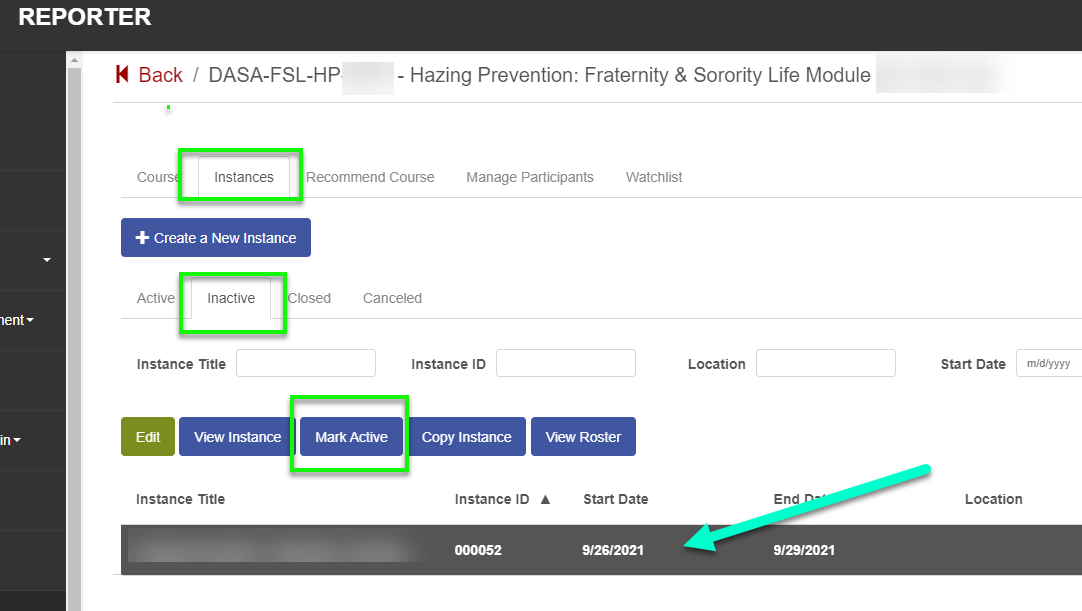
Using ‘Mark Active’ from the Inactive subtab on the Instance tab of course edit
If you are extending the instance, that means you want everyone with attendance to be ‘reactivated’ so that they see the course under Upcoming. To do that you will:
- edit the course
- go to the Instances tab
- then while the instance is still inactive, go to the ‘Inactive’ subtab.
- There you will select “Mark Active” which will reactivate all inactive instance registrants (this excludes ‘Completed’ registrations, which are people with Final Attendance).
 Option B – You are registering users after the fact
Manually editing the instance and changing the status dropdown
Whereas, if your need is for retroactive registrations, you don’t want the instance to show under ‘Upcoming Courses’ because it is not upcoming anymore but the instance status has to be “Active” in order to register additional people. In order to achieve that, you essentially want to activate the instance while leaving the Inactive participants untouched.
What is the difference between Moodle and REPORTER?
REPORTER is a registration system that provides administrators a way to offer training, events, and other activities for registration. The system provides registrants with primary information about the activity they are registered for and allows Course Admins to track final attendance and download reports with participant information. Moodle, however, allows administrators to host their online training or content and track interaction in detail.
Moodle is a NC State’s primary online Learning Management System and is housed in Wolfware suite managed by DELTA. The Moodle Learning Management System can be used to host online content, including documents, quizzes, assignments, and more.
How do users return to Moodle after completing the training?
1 – While logged into REPORTER, on the homepage, scroll down to the “Completed Activities Section”
2 – Locate the course and click the View Details option
3 – In the window that opens, click the button to Access Online Content
Click here to see Help Documentation provide to Participants
Reposting a Moodle Connection From REPORTER
If your updates include changing the “Moodle Course ID” field in the instance setup, you will need to use the “Create Post” option to repost the users with the correct Moodle code.
See More about this option here.
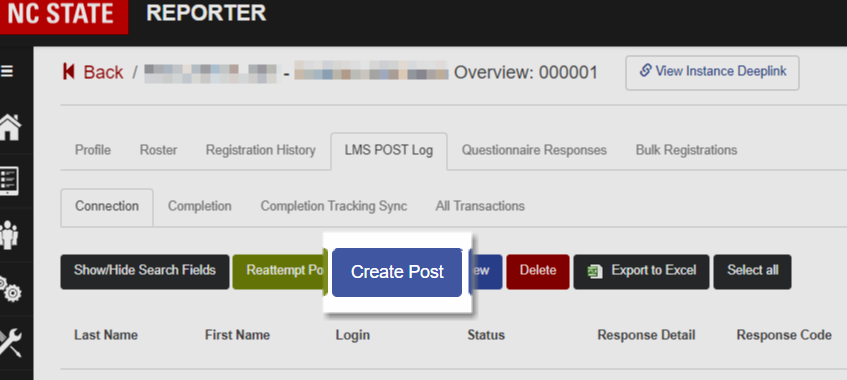
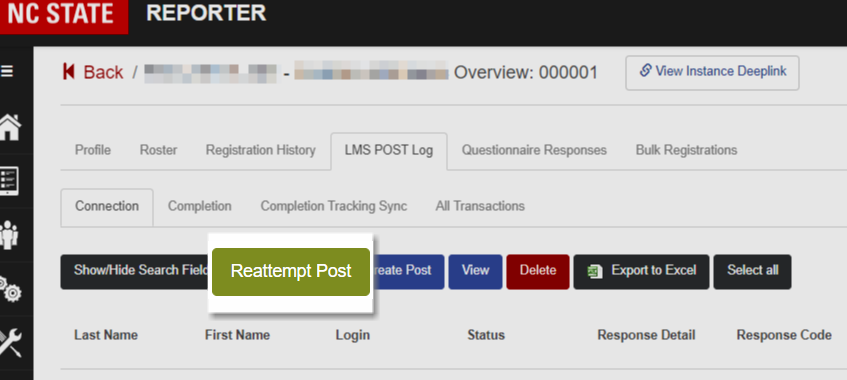
Otherwise, if you have only updated settings (ex. enabling completion tracking), you can use Reattempt Post to resend that connection.
1). Edit the instance in REPORTER
2). Go to the tab labeled “LMS POST Log“
3). Then go to the subtab for “Connection“
4). Locate the relevant user(s)
— Select “Show/Hide Search Fields” to filter the records listed
5). Click on the record(s) you want included (or use select all)
6). Select the option to Reattempt Post
7). The details to be sent will open, at the bottom click Reattempt Post
8). You should see a “Success” message confirming the connection.
Why are users unable to see the course?: Recent Registration
Moodle spaces have ‘Availability’ windows that are controlled by Wolfware, and if the availability has not begun, or is past the end, the content will not be available to those registered and enrolled. If users attempt to access the online content when it is unavailable, they will see something similar to the image on the right:

Those with access to manage the Wolfware space the Moodle course is under can update the availability dates via:
1). Go to Wolfware.ncsu.edu and log in
2). Once logged in, select the Project or Outreach tab as appropriate
3). Locate the correct project but instead of click the Moodle option, select the Gear Icon
4). In the left menu under ‘Wolfware Tools’, select Moodle
5). Use the availability section to update and apply the update date start and/or end dates:
- If start date is in the future, the content is unavailable
- If end date is in the past, content is also unavailable
Since the issue is related to a Moodle availability, nothing should need to be done in REPORTER to update their access so long as the instance is still active.
For further assistance with Moodle or Wolfware, please contact [email protected].

Why are users unable to see the course?: Did not register recently
If a participant reports that they are able to select “Access Online Content” under Upcoming Courses but they are not able to get to the course, you may need to update their enrollment window. Below is a screenshot of what users will see if their enrollment window has expired in addition to details regarding how to activate the user or users.[row][column lg=’3′ md=’3′ sm=’3′ xs=’12’]Typically this is the result of an older registration because when users are registered, they are given an enrollment window within Moodle that determines how long they will have access to the content. Enrollments that occurred prior to June 1, 2020, were enrolled with a default of 365 days of access. Enrollments from after that date have their enrollment window set based on the related field in the instance setup. After one year, they are inactivated by Moodle, which means if they click “Access Online Content” from REPORTER, they will see something similar to: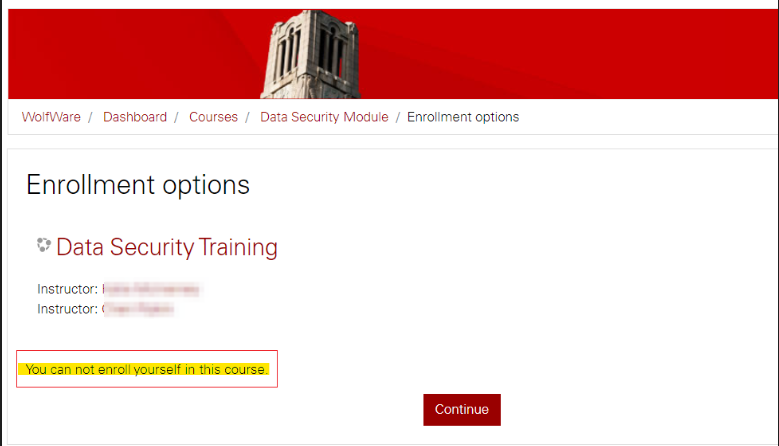
Extending Moodle Access for individual Participant(s)
Access to Moodle content is dependent on the availability settings that can be updated directly in Wolfware. If someone’s access to the content has expired, you can manually update their enrollment dates in Wolfware to restore their access.
Before you extend access it is important to note that Outreach server bills based on whether the user has gone into that Moodle space within a 365 day window (Reference – Outreach Billing).
Once you’ve updated the dates in Wolfware, the participant will be able to see the content after clicking ‘Access Online Content’ in REPORTER. Please note, if the participants do not see the course under their “Upcoming Courses” in REPORTER, but the instance is active, you may also need to reactivate the registrants as demonstrated here.
To edit the enrollment dates in Wolfware:
1). Log into wolfware.ncsu.edu
2). Select the relevant tab at the top (either “Projects” or “Outreach”)
3). Find the relevant space in the list
4). Click on the gear icon on the far right
5). In the left-side menu, click “Users & Rosters”
6). Locate the relevant person in the list.
If you do not see them listed, use Reattempt Post in REPORTER (see steps on the right) then return to step 6.
Click here for Reattempt Post instructions
Repost the participant if they are not listed in Wolfware:
i). Log into REPORTER and edit the relevant instance
ii). While editing the instance, select on the tab at the top labeled “LMS POST Log”
iii). Use the search options to find the relevant person
iv). Click to select them
v). Click the button to “Reattempt Post”
vi). Once reposted, return to the user list in Wolfware and refresh the page
7). To the right of the relevant person, click on the set of dates in red.
***DO NOT use the Extend Access option***
8). Update the dates as appropriate
9). Then click Save
DEMO:
Video Player
How can I get a participant into Moodle after correcting Instance Setup?
1). Edit the instance in REPORTER
2). Go to the tab labeled “LMS POST Log“
3). Then go to the subtab for “Connection“
4). Locate the relevant user(s)
— Select “Show/Hide Search Fields” to filter the records listed
5). Click on the record(s) you want included (or use select all)
6). Select the option to Reattempt Post
7). The details to be sent will open, at the bottom click Reattempt Post
8). You should see a “Success” message confirming the connection.
How do the ‘Moodle Enrollment Period’ and ‘Instance Start Date’ affect the online content’s availability?
There are three different sets of date values that are relevant for Moodle connections, and they do not control one another:
- Instance dates, which control where the instance is shown to participants
- Access dates in Wolfware, which are specific to each individual and control whether they can access the Moodle space (each person can have a different date)
- Moodle Availability dates, which control whether the actual content of the Moodle space is available (impacts all participants)
i). Instance Dates
The dates in REPORTER will only impact where the course is shown in REPORTER — the instance start date does not control when the participant gets access to online content.
- Your instance setup includes four dates: Registration Start and End Date, and the instance Start and End date.
- The registration start and end dates will only control whether the instance is available for registration through a deeplink (or catalog if published).
- The instance start date is only for record keeping purposes — it won’t have any impact on the instance or the participants.
- The instance end date controls where the instance will be shown to participants on their dashboard.
- When the instance end date is in the future, the instance will be under Upcoming Courses
- Once the end date passes, the instance and the registrations are marked Inactive, and are removed from the dashboard (still accessible through My Profile)
- If this happens and you need to reopen your instance, there are specific steps you need to follow, outlined here.
ii). Access dates
Access dates in Moodle will depend on when the registration was completed (including payment), and the Moodle Enrollment period field from your instance setup. Once a participant registers and has no payment due, REPORTER will send their details to Wolfware to have them added as a participant in Moodle. When they are added as an active participant, dates are set in Wolfware for when they will no longer be an active student — the expiry date will be set at that moment using the current date + the Moodle Enrollment Period (representing number of days).
- For example, if you paid on 5/1/2025 and the enrollment period was 90 days, the expiration date in Moodle will be 7/30/2025.
iii). Moodle availability dates
If the person is able to be added to the Moodle course, Wolfware will send a link back to REPORTER, and that link is used on the “Access Online Content” button the participant gets. They will click the link and go out to the Moodle space. It should be noted that participants are simply added to the roster and given a link to the Moodle space — if you have restricted your Moodle space using Wolfware settings, those restrictions will be in place for participants. In other words, you can use the Wolfware availability dates to restrict access to the Moodle content for people that are enrolled as participants. To see how this is done and how it impacts the participants, click here.
How can I connect a user to the same Moodle space through different instances?
When a participant is registered in REPORTER, REPORTER will provide the user’s ID and the Moodle ID specified and then Moodle will attempt to place that user in the related Moodle space (reference). Moodle will either tell REPORTER that Yes, the user was just given access or No, the user was not newly given access.
If a user is registering for an instance tied to the Moodle space for the first time, you will see a successful connection as they were placed into that Moodle space as a result of the registration.
Later, if the same user was to register for a different instance that goes to the same Moodle space, when REPORTER sends the details to Moodle, Moodle will not be able to place them in the space because they are already there. From the user’s perspective in REPORTER, it will appear the same as if the connection failed due to a setup error.
Because of this, participants can only be ‘Actively’ connected to a Moodle space through a single registration. It is also important to note that if users will need credit for completing multiple instances, a separate Moodle space should be created for each completion cycle (instructions for that area available here).
You should never rely on using multiple instances for the same Moodle space when registrants will register for more than one of those instances. If users will need credit for multiple instances, it is recommended that a separate Moodle space be created for the new instance (instructions for that area available here).
If you find yourself in a situation where the same Moodle space was used for two different instances, and you wish to deactivate one and retain the other, you will need to have the participant(s)removed from the Moodle space before they can reconnect through the other registration. Note that if they have two registrations tied to the same Moodle space at the time that one is cancelled, you will need to reattempt the connection for the registration that is not cancelled (instructions here).
- From REPORTER, If the instance setting for “Unenroll Users on Drop” = Yes, when the registration is Cancelled in REPORTER, REPORTER will tell Moodle to remove [User] from the [Moodle space]. This will automatically run the process of removing the user from Moodle, which is otherwise done manually from the participant list in Moodle.
- For Moodle, please refer to the instructions seen by clicking here.
How can I verify if a participant has completed all the required Moodle Activities?
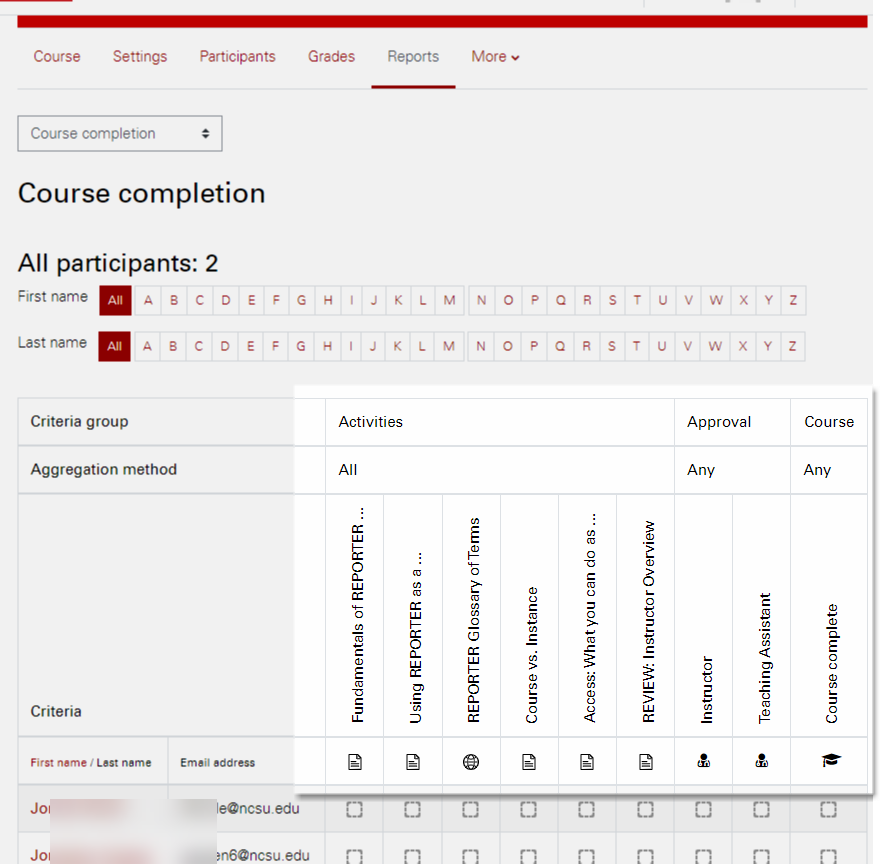
Use the “Course Completion” report found in Moodle via:
- Open the course in Moodle
- From the menu under the course title, choose the option “Reports”
- Then select the link for “Course Completions”
At the top there will be headers that indicate what activities are included in the completion criteria (Reference: Integration Step 2), and whether they are are marked complete.
In the right hand example you will see the completion settings are indicated on the report headers:
- Per the Last Column
- Activity Completion and Manual Indication by an Admin Role (Reference: Image of Relevant Setting
The Course Completion required that the participant meets ANY of the Conditions to the left, so they only need to meet ONE of the two Conditions;
- Activity Completion and Manual Indication by an Admin Role (Reference: Image of Relevant Setting
- Per the columns under “Activities”
- Condition: Activity completion
In the example, the participants are required to be marked complete for ALL of the listed activities to meet the condition. (Reference: Image of Relevant Setting)
- Condition: Activity completion
- Note that in this example, restriction settings are being used to enforce conditional completion requirements, click here for more details.
- Per the columns under “Approval”
- Condition: Manual completion by others
In the example, the participants can be manually marked complete byANYof the listed user roles in order to meet the condition. (Reference: Image of Relevant Setting)
- Condition: Manual completion by others
How do I address missing completion records?
I have confirmed a participant completed the required Moodle content, but they are not marked complete in REPORTER, despite others having been marked complete.
How do I address missing completion records?
1. Start by confirming the participant(s) completed the Moodle course,
2. Verify the course is getting completions.
3. Then open the related REPORTER Instance and go to the the ‘Roster‘ tab
* If you need to mark a large number of completions, you can use the Bulk Registration feature to import completions.
4. Select “Edit Final Attendance“
5. Either Search or Scroll to find the participant(s) that need credit
6. Use the right hand dropdown to mark people “Complete“
7. Then “Save Final Attendance“
If you need to record the specific dates, instead of marking them complete for Today’s date…
…use the Completion Report in Moodle to verify the participant’s completion date.
Click on this panel to see step-by-step instructions for getting the actual completion date from Moodle
i). Open the Moodle Course tied to the REPORTER instance. If you don’t know which course to open you can obtain the link in REPORTER via:
a. Edit the relevant instance
b. Go to the LMS POST tab, and click a posted record under ‘Connections’
c. Click the button to “View”, then copy the value labeled “LMS URL”
ii). Select the ‘Reports’ tab at the top, then click the link for the Course completion report
iii). In the report, locate the participant reporting missing completion
iv). Hover you cursor over the farthest right column which should display the date and time they were marked complete.
At this point, it may be worth checking Wolfware’s Maintenance Calendar or SysNews to verify if there was a maintenance window for Moodle or REPORTER on the same day. If so, that is likely the cause of the missed completion.
Identify & Address Missing Completions
Registrations are working correctly, but completions from Moodle aren’t updating. I’ve never had completions marked even though I’ve verified that the completions are being recorded in Moodle.
Why am I missing completion records?
If you find that users are able to register for training, access the Moodle content, and Moodle is marking them complete, but those completions are not updating in REPORTER, you may need to verify and correct your completion tracking.
| i – IDENTIFY: Use the LMS Post Log report in the instance to view “All Transactions” and confirm what date the space was set to track completions. If completions were expected earlier than the identified date, they will not be recorded in REPORTER. Verify when the completion tracking was initiated. When first evaluating for issues, the All Transaction tab can be used to get an idea of what completion tracking has taken place because a record is created every time Moodle and REPORTER communicate. With that history, we can see when REPORTER asked Moodle to track completions for the Moodle Space indicated (via the Moodle ID code in Instance Setup). Each time the instance is saved, REPORTER will talk to Moodle and get a response regarding: #1 – Was the Code provided by REPORTER matched to a code in Moodle? #2 – Was the Moodle space with that code added or removed from the list of spaces sending completions? The following are common responses and what they indicate: • Course added to REPORTER completion tracking: Space was Found and Newly Added for tracking • Error: Course already added to completions tracking list: Space Found but was already added for tracking and is still on the list • Error: Course Not Found: Moodle stated the ID was not matched with any spaces in Moodle How REPORTER and Moodle determine which completions to track whenever an instance indicating it will use Moodle is saved, REPORTER will look at the instance setting “Synchronize Moodle Course Completion data in REPORTER” and send a request to Moodle that includes the instance field “Moodle Course ID Number” and asks for it to be added or removed from the list for tracking. The only way to add or remove for tracking is to Save the Instance. If on the list, any completions for that space will be sent back to REPORTER once finalized by Moodle. Otherwise, no completion data will be sent. Completions are sent to REPORTER within 30 minutes of being recorded in Moodle. Why Registrations work even if Completions Are Not Recording Completion tracking differs from the registration connections which means you can have successful registrations but still have completion issues/errorsDuring registration, the ID in the Instance setup is referenced to attempt a registration, and the records show the registrations were successful.Whereas Completion Tracking is only set as a result of saving the instance settings and the field.For additional information about what data is sent between REPORTER and Moodle and when, please see the following help document: Understanding the Interaction between REPORTER & Moodle |
| ii – VERIFY CORRECTIONS: Download the completion report from Moodle as well as the roster for the Instance in REPORTER, and use Excel to identify missed records. Then copy those records into the Bulk Registration template and import the missing completions. 1- Get Completion List from Moodle Start by obtaining the records from Moodle that show who has completed the course requirements for completion. 1). Open the Moodle Course tied to the REPORTER instance If needed, you can find the related space in REPORTER via: a. Edit the relevant instance b. Go to the LMS POST tab, and click a posted record under ‘Connections’ c. Click the button to “View”, then copy the value labeled “LMS URL” 2). Select the ‘Reports’ link and open the Course Completion report. 3). At the bottom of the report you should see red link options to download the report 4). Once downloaded, you will edit the report and remove the records that have no completion credit a. Open the file downloaded b. Sort the records by Completion Date – should be the farthest right column c. Delete all records that do not have a completion date/have not been marked complete d. Open a blank spreadsheet and Copy and Paste the “Email Address” column and the farthest right “Completion Date” column. 2 – Get a list of incomplete participants from REPORTER Next, obtain a copy of those registered for the REPORTER instance who are not marked complete yet. Go to the Instance Roster and download a list of users without final attendance i). Activity Management > Courses/Instances > Edit Course > Edit Instance > Roster tab ii). Expand the search fields using Show/Hide Search Fields iii). Set the ‘Final Attendance’ search field to “(empty)”, then run the search iv). Once filtered, select ‘Export to Excel’ v). Open a new sheet in Excel and Copy and Paste in the “Email Address” from the file you download[/panel] 3 – Identifying and Import Missing Records In the spreadsheet obtained from REPORTER data, add a Vertical Lookup equation that references the spreadsheet populated with Moodle data. The equation should be something like:= VLOOKUP(A2,SheetMoodle!A:B,2,false) A2 = The cell containing the email address of the participant that is not marked complete in REPORTER Sheet Moodle! A:B = The Email and Completion date columns from the Moodle data Example Comparison File: https://oit.quickbase.com/up/bmnmgha7f/g/rban/ej/va/ComparisonExample.xlsx If anyone has a date displayed, those records should be copied into the REPORTER Bulk Registration Template Return to the instance in REPORTER and go to the bulk registration tab Click the upload button and then download the bulk registration template Open the template and copy in the emails and completion dates you identified in step 5, be sure to keep each email directly beside the completion date Tip: You can use the Filter Tool in excel to exclude anyone with a date of “#N/A” Save the file and then return to the Bulk Registration tab to complete the upload and begin the import. You will receive an email when the import completes. After receiving that email, return to REPORTER and confirm the imports ran as expected by checking the import log on the bulk registration tab |
| iii – ADDRESS OR PREVENT Step 4, as seen in the Step-by-Step setup guide, provides aide to users in preventing this issue for future registrations, use these notes to review and confirm completion tracking. EXAMPLE: The most common scenario resulting in the this issue has been described below. In this scenario, completions fail to record because the Moodle space was not able to track completions when the instance was created and it was not resaved after the Moodle space became available for tracking. 1). Admin is in Wolfware and requests a project space 2). The space becomes available and the owner can manage settings of the project and will ‘Activate’ the Moodle tool. 3). At that point you have enabled Moodle but you are not able to edit the space immediately, especially if using course copier. Despite Moodle not being active yet, the Admin is able to see and copy a “Wolfware ID” which will eventually match the Moodle space’s ID. This can lead to setup problems because, while the ID may be accurate/match the eventual Moodle Course ID, the Moodle space technically cannot be tracked until the space is active with completions setup as needed. 4). While awaiting email confirmation from Wolfware that the Moodle space is ready, the course admin could go back into REPORTER to paste and save the Wolfware ID while the Moodle space is being created. REPORTER will retain that value, but it is only properly connected if the admin returns after Moodle is available and resaves the instance. That resave step is one that can be missed in this scenario. 5). Once notified via email that the Moodle space is ready, you can return and complete the Moodle setup, but that resave piece is often missed because when the Moodle space is generated and active, it has the same unique ID as the Wolfware ID As the Course Admin, you would look and see that the ID is the correct because it now matches, but technically at the time it was relevant, the Moodle space did not exist/could not be tracked It is typically not evident to admin in this situation that they still need to resave the instance to get the completions tracking If a user reports completing the course but they are not marked complete in REPORTER…Verify the Moodle setup was completed correctly including having course completion criteria, enabled manual enrollments, and that activities work as expected: 1). Confirm the user has actually received credit for completing the Moodle content 2). From your Moodle Course, select the Reports tab 3). Select Course Completion (If you do not see this link, your completions are not configured correctly.) You will see which activities have been completed and if the user got credit for completing the course. Once the required activities have been successfully completed, the Course Complete box will fill in — this can take up to 30 minutes. If the user has not been marked complete in Moodle for the overall course, please reach out to Learntech for Moodle support at [email protected] If the user has been marked complete in Moodle for the overall course and they completed over 24 hours ago, email [email protected] to report the issue. Please include as much of the following as possible when sending an issue to REPORTER Support. Confirm Manual Enrollments are enabled Confirm Self-Enrollments are disabled Confirm the Moodle course has completion criteria Moodle Course Name Moodle Course ID Participant name Participant completion date & time Course ID & Instance number in REPORTER that it should be connected to Note: REPORTER does not house any course content and is not an LMS; it only supports registrations and completion tracking. If a user contacts you saying their REPORTER course’s quiz or other activity has an issue, they are referring to Moodle. Any questions regarding course content or participants completing activities are in reference to Moodle, though the user may call it a REPORTER course. |